
TRICK : Cannot start Integration Server
If you tried to start your Integration Server as per usual, but it is not started after the normal startup procedure, first check whether there is a LOCKFILE.
Check <webMethods6/IntegrationServer/> directory for a file named "LOCKFILE".
Remove the file and you should be able to restart your Integration Server then.
EAI
Introduction to EAI (webmethods)
webMethods
Intro to webMethods flow
Copped a referrer link from a google search ("Flow Services are physically stored on the webMethods Integration Server), thought I'd provide some information to answer it as someone's trying to figure out how it all works.
WebMethods Flow Language
WebMethods Flow is a graphical language for performing common types of integration operations such as mapping, invoking, looping, branching.
Flow Operations
The operations supported by the language:
Invoke - for kicking off other services
Map - for manipulating the pipeline (e.g. put a value into, drop a value or map from one to another)
Branch - for executing different paths depending on some condition (like if-else structures or like a switch statement depending on how you use it)
Loop - for iterating over the elements in a list structure in the pipeline
Repeat - I prefer to call it "retry", as it will retry the child operations while those child operations either fail or succeed (depending on how you want it to operate)
Sequence - for grouping together operations and alterning how exceptions will be treated (e.g. you might want to exit on failure, or exit on success, or ignore any errors/successes and just keep processing)
Exit - for jumping out of the flow, the parent, the loop, or back to a label on one of the parents etc
When you're developing, you're working off code on the Integration Server, which is generally a shared development box. So there is nothing really stored on your machine except any unsaved changes. It is stored on the Integration Server in an xml file (in a file called flow.xml inside the directory structure of the package it lives in) and converted into an in-memory representation of the tree of operations which can be executed (all under the covers.. you just write the flow code and it does the rest).
When flow doesn't cut it
Flow is not meant to be able to do everything, that's why you write java services to wrap up any extra code that flow becomes too messy, or you just can't do it.. and then invoke that java service from your flow. After a while you end up with enough "building block" services that you can reuse that functionality by simple invoke.
A little advice: Some people get tempted to do too much in java services, things like maps for instance: general rule I would say is to always use flow for mapping. Java just isn't as maintainable for mapping of nested structures as a few map steps that you've defined by click and drag.
Further Info
Since this won't teach you anywhere enough to get on with development:
Still can't go past webMethods training for a great way to learn how to get going on webMethods
To get up and running and to get an idea of webmethods terminology, see my earlier post on Crash course on webmethods integration server
testing for webmethods, you'd be wanting WmUnit - the webmethods testing framework (shameless plug warning)
Refer to the ISDevelopersGuide.pdf that comes with the installation of the Developer tool
Copped a referrer link from a google search ("Flow Services are physically stored on the webMethods Integration Server), thought I'd provide some information to answer it as someone's trying to figure out how it all works.
WebMethods Flow Language
WebMethods Flow is a graphical language for performing common types of integration operations such as mapping, invoking, looping, branching.
Flow Operations
The operations supported by the language:
Invoke - for kicking off other services
Map - for manipulating the pipeline (e.g. put a value into, drop a value or map from one to another)
Branch - for executing different paths depending on some condition (like if-else structures or like a switch statement depending on how you use it)
Loop - for iterating over the elements in a list structure in the pipeline
Repeat - I prefer to call it "retry", as it will retry the child operations while those child operations either fail or succeed (depending on how you want it to operate)
Sequence - for grouping together operations and alterning how exceptions will be treated (e.g. you might want to exit on failure, or exit on success, or ignore any errors/successes and just keep processing)
Exit - for jumping out of the flow, the parent, the loop, or back to a label on one of the parents etc
When you're developing, you're working off code on the Integration Server, which is generally a shared development box. So there is nothing really stored on your machine except any unsaved changes. It is stored on the Integration Server in an xml file (in a file called flow.xml inside the directory structure of the package it lives in) and converted into an in-memory representation of the tree of operations which can be executed (all under the covers.. you just write the flow code and it does the rest).
When flow doesn't cut it
Flow is not meant to be able to do everything, that's why you write java services to wrap up any extra code that flow becomes too messy, or you just can't do it.. and then invoke that java service from your flow. After a while you end up with enough "building block" services that you can reuse that functionality by simple invoke.
A little advice: Some people get tempted to do too much in java services, things like maps for instance: general rule I would say is to always use flow for mapping. Java just isn't as maintainable for mapping of nested structures as a few map steps that you've defined by click and drag.
Further Info
Since this won't teach you anywhere enough to get on with development:
Still can't go past webMethods training for a great way to learn how to get going on webMethods
To get up and running and to get an idea of webmethods terminology, see my earlier post on Crash course on webmethods integration server
testing for webmethods, you'd be wanting WmUnit - the webmethods testing framework (shameless plug warning)
Refer to the ISDevelopersGuide.pdf that comes with the installation of the Developer tool
I)Introduction:
The company pioneered the use of web services to connect software applications together within a single organization and across the Internet.
II)Focused On:
1)Application Integration.
2)Business Process Integration.
3)B2B Partner integration.
III)Basis:
It is based on the idea to use the new standards of the Web such as HTTP and XML to allow software applications to communicate with one another in a real time.
Series of development consist of:
1)Web Automation Server.
2)Web Methods B2B Integration Server.
IV)Basic Function of this software:
It is basically an “engine for running services” .A service can be viewed as a black box which performs some computational function. It takes in required data, required messages and generates the output as required by the required computation.
The Web method integration server is a service engine therefore to IS, everything is viewed as a service.
V)Other Components of it are as follows:
1)Integration Servers:
It is the engine for running services .Many other modules are used as an add on the integration server on the top of the IS. Some of the examples are Trading Networks, Flat File Handler and Business Process
Modeler as well as the administrative GUI’s for other modules.
Features of the Integration Server is as follows:
a) An engine for running local services, distributed services, web services.
b) A client enabler to invoke local services, distributed services, web services.
c) To bind two disparate systems.
d) An XML parser and generator.
It uses the Webmethod Flow Procedural Statements which are :
1) MAP(assignment statement).
2) BRANCH(decision statement).
3) LOOP(iteration statement).
In addition the flow language has the following extra 4 statements:
4) INVOKE (subroutine call).
5) SEQUENCE(compound statement)
6) EXIT
7) REPEAT(another iteration)
2) Trading Networks:
It is a service that acts as an interface between the internet and the Webmethod . It tracks down data between the multiple external partners and an integration server.It performs task such as
a)Authentication
b)Authorization
c)Document Identification
d)Logging and activity monitoring.
It can be viewed as a generalized document router, but in reality it acts as simply another service running with the integration server. It can be invoked via a variety of mechanisms such as HTTP, FTP, SMTP, Web Services ,java client or via publish/subscribe.
3)Broker:
It acts as separate server which helps to pass data between the multiple instances of the integration Server. In it a service publishes a document to the broker and the broker delivers the document to all services that subscribe to the document. The Broker performs routing of messages in a reliable and efficient manner.
4)JAVA Service:
Java is used to write for all the services except the running services. The cases when java should not be used to write services are as follows :
1)The Webmethod developer does not provide an IDE for java.
2)Java program cannot easily manipulate the pipeline which is used by integration server to pass data among services.
3)Java is harder to implement in comparision to the flow language.
VI)Webmethods Installation:
Its products are not free and the cost goes up high to have it. The products can be installed from the internet if you have an access to the appropriate license key.
An installer program WebmethodsInstaller651.exe is needed to access the installation files.
The installation choices are as follows:
a)We can deploy the products online on a single machine kust by opting out for the prompts interactively or via a script file.
b)We can download products to a image file which can be later used for the local deployments,by answering prompts interactively or via a script file.
VII)Hardware Configuration requirements:
a)2-3 GHz CPU.
b)1-2 GB RAM
c)40-80 GB HDD.
d)Compatible with both Unix and Windows OS(Unix is favored for the production system but windows is better for an experimental purpose).
e)A Database(For example Oracle or SQL Server)
VIII)webMethods Products :
It produces a lot of the products that focuses on
a)Enterprise Application Integration Market(EAI):
It is concerned with integrating disparate systems such as application servers (SAP, Seibel, Peoplesoft ),
Database management systems(Oracle, SQL Server, DB2),mainframe and custom applications(J2EE).
b)Business-to-Business market(B2B):
It is concerned with enabling separate companies to exchange electronic documents , such as purchase orders ,invoices, etc .
IX)Notes(Concepts to be known):
1)XML-RPC: It works by sending a HTTP request to a server implementing the protocol.
Client(software)------------------------->Server(That implements that protocol)
(HTTP Call)
In this multiple input parameters can be passed to remote method, but only one return value is returned.
2) WIDL (Web Interface Definition Language) is a 1997 standard for interactions between websites.
X)References are as follows:
Google and other blogs.
webMethods Diagnostics Data.
http://localhost:5555/invoke/wm.server.admin/getDiagnosticData
webService-WSDL tab Data getting disappeared.
web-service consists of numerous operations and when you go into the WSDL section all the data in there is getting disappeared.
The problem occurs- Cannot find document type needed to .generate WSDL.(This occurs when package dependency is not resolved)
Universal Messaging integration with JNDI
Universal Messaging is the default messaging component used by webMethods Integration Server. Here is a short tutorial how you can test JMS processing using SoapUI and HermesJMS.
SOAPUIDIRpoints to the installation directory of SoapUI, e.g.C:\Program Files\SmartBear\SoapUI-5.1.3.NIRVANADIRpoints to the installation directory of Nirvana, e.g.C:\SoftwareAG\nirvana.
Setup Universal Messaging
- First of all you need to create the needed artifacts in your Universal Messaging realm. Start with the
JNDI Provider URLand clickApply. - Then add a
Connection Factory,Topic Connection Factory, andTopic: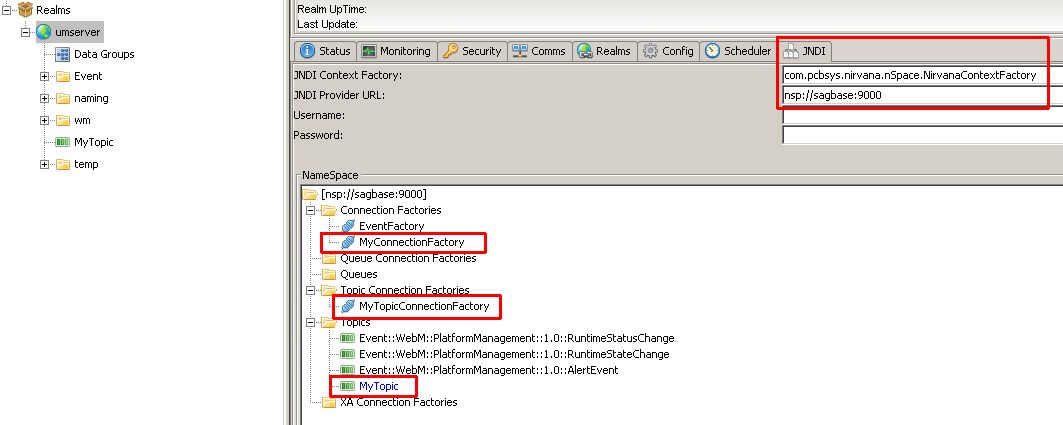
Setup Integration Server
- Create a
JNDI Provider Aliasfor Universal Messaging underSettings > Messaging > JNDI Settings: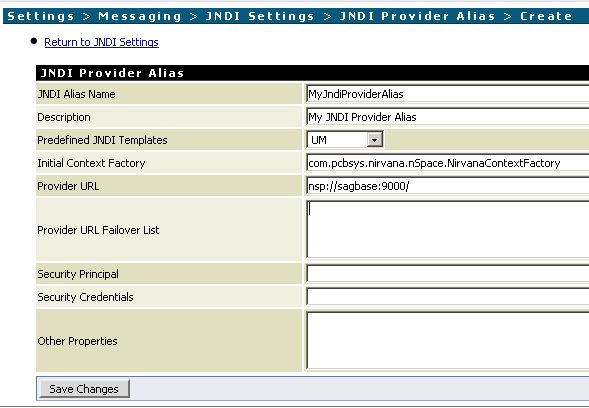
- You can now test the alias and should see the artifacts you created in Universal Messaging:
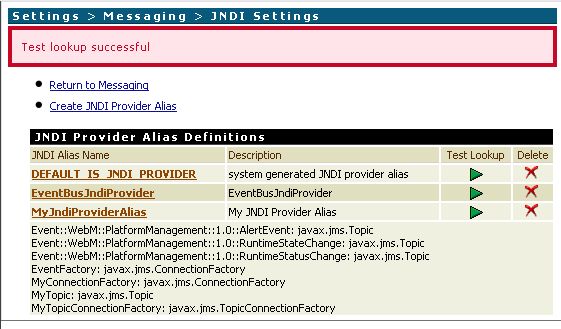
- Create a
JMS Connection Aliasfor the JNDI Alias underSettings > Messaging > JMS Settings. Use the corresponding values from Universal Messaging forJNDI Provider Alias NameandConnection Factory Lookup Name: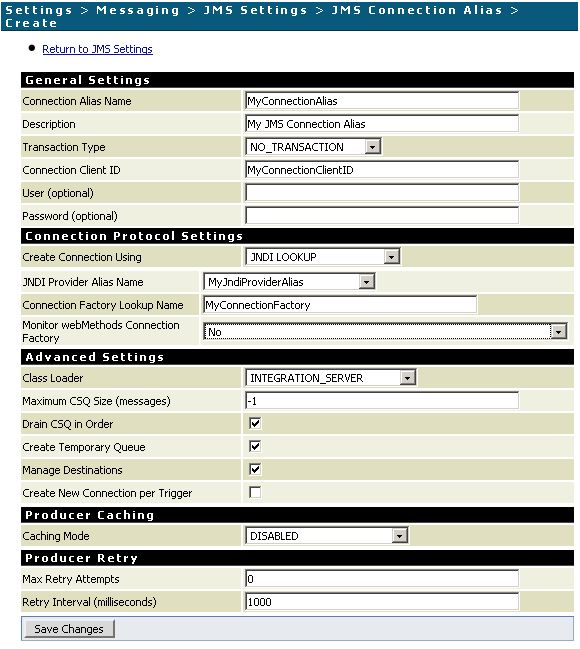
- Enable the Connection Alias:
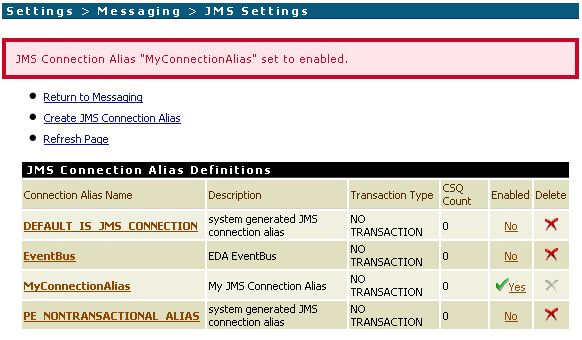
Setup SoapUI/HermesJMS
- Copy the following JARs to
SOAPUIDIR\hermesJMS\lib:NIRVANADIR\lib\jndi.jar,NIRVANADIR\lib\nClient.jar,NIRVANADIR\lib\nJ2EE.jar,NIRVANADIR\lib\nJMS.jar. - Create a new session named
ISand add all above JARs to a new classpath group named IS: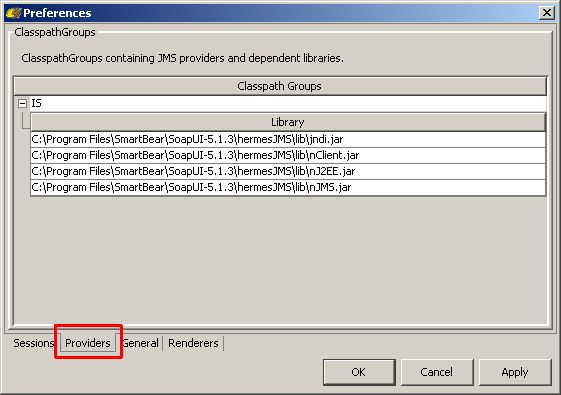
ClickApplyand restart HermesJMS. - You should now be able to select
ISunderLoaderandhermes.JNDIConnectionFactoryunderClass: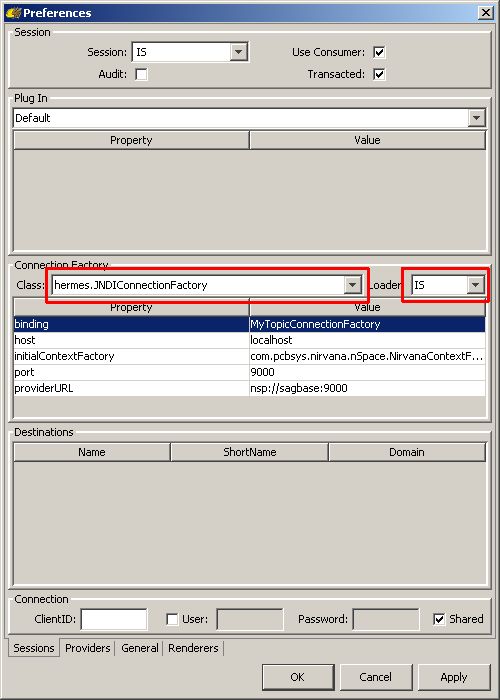
Add the propertieshost,port,initialContextFactory,providerURL, andbindingunderConnection Factoryand configure them according to your environment. You can find the needed values in the JNDI settings of Universal Messaging: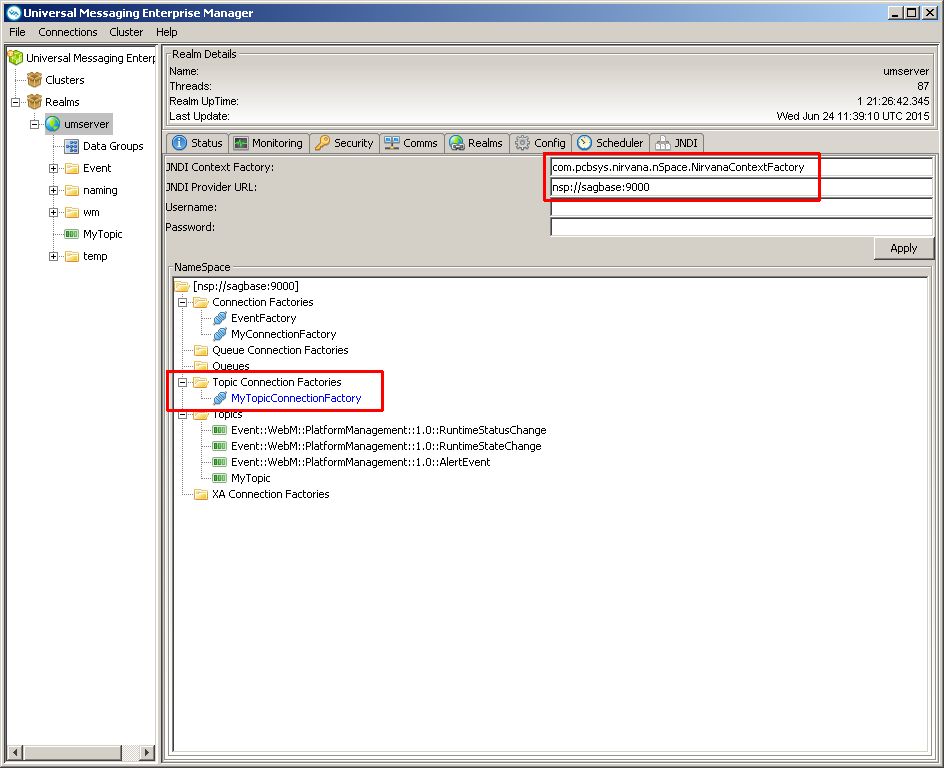
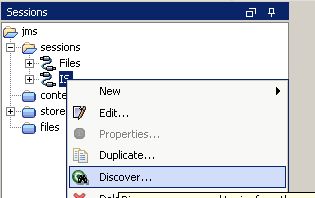
- You should now be able to discover queues and topics for the session:
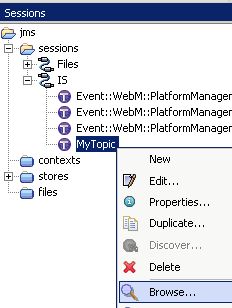
- To test the subscription to a topic, you can now browse the topic:
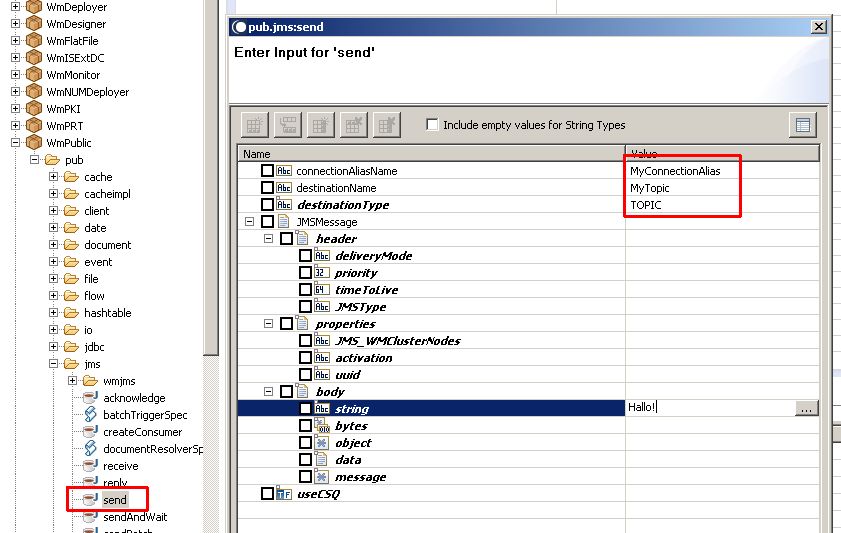
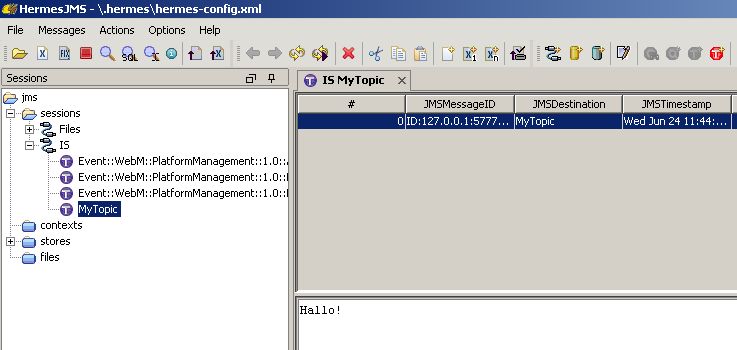
- If you send a test message with Software AG Designer, you should see the message in HermesJMS:
Possible errors
hermes.HermesException: The binding property to locate the ConnectionFactory in the Context is not set: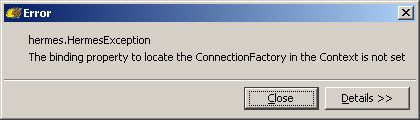
Add the propertybindingunderConnection Factoryin the session preferences (right-click on the session andEdit).
Additional Links
http://um.terracotta.org/index.html#page/Universal_Messaging_Documentation_Set/to-overview-jndiadmin.html
http://techcommunity.softwareag.com/web/guest/pwiki/-/wiki/Main/Using+webMethods+Integration+Server+with+webMethods+Nirvana+Messaging
https://community.smartbear.com/t5/SoapUI-NG/subscribe-to-JMS-queue-on-Universal-Messaging-webmethods/td-p/95227
http://serviceorientedarchitect.com/how-to-test-jms-processing-in-webmethodsterracotta-universal-messaging-and-integration-server-with-soapui-and-hermesjms/
How to import SSL certificates into webMethods Integration Server
In this article I described how you can generate a self-signed SSL certificate to enable HTTPS in webMethods Integration Server: How to create a self-signed SSL certificate for webMethods Integration Server with OpenSSL. Now it’s time to import a realcertificate.
If you have received the signed certificate from your Certificate Authority, you can follow these steps to import it into Integration Server. I’m using OpenSSL on a Linux machine and Java’s keytool on my Windows workstation for the command line work.
Prepare the certificate
- The private key has to be in PEM format and needs to be BASE64 encoded. At least in my case OpenSSL wasn’t able to handle it otherwise.
- First of all, you need to protect your private key with a password, if you haven’t already done so.
openssl rsa -des3 -in integrationserver.key -out integrationserver.key - If the certificate is in format DER (in my case it was and the file had the ending cer), it has to be converted to PEM:
openssl x509 -in integrationserver.cer -inform DER -out integrationserver.crt -outform PEM - Now the keystore for Integration Server can be created:
openssl pkcs12 -export -des3 -in integrationserver.crt -inkey integrationserver.key -out integrationserver.p12 - Now we need to create a Truststore containing the issuing certificates of our certificate. You need to download the required certificates for the whole certificate chain and add them to a Truststore:
keytool -import -alias rootCA -keystore integrationserver.jks -file rootCA.crtYou need to repeat this command for each certificate of the chain with a unique alias.
Import the certificate into Integration Server
- Create a Truststore Alias under Security -> Keystore -> Create Truststore Alias.
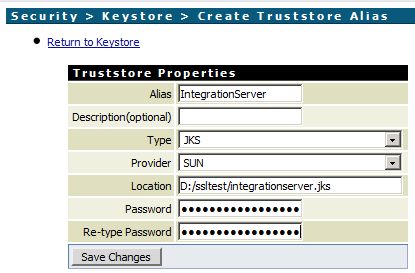
- Create a Keystore Alias under Security -> Keystore -> Create Keystore Alias.
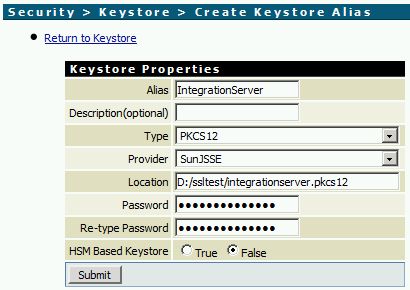
- Create an HTTPS Port Security -> Ports -> Add Port.
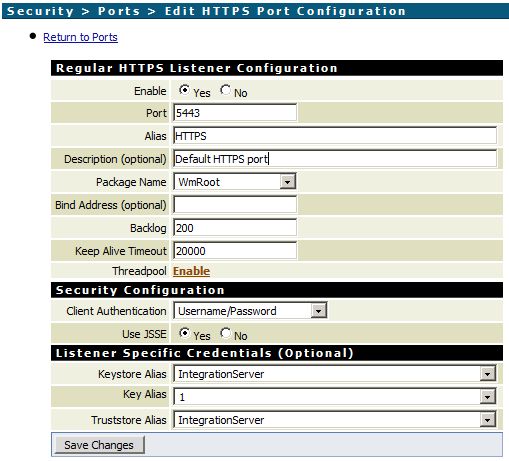
- Enable access through the new port.
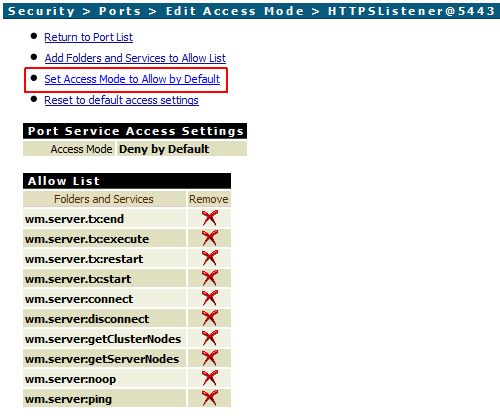
- Test your new HTTPS connection in a browser:
https://YOUR-SERVERNAME:5443/
How to create a new webMethods Integration Server instance
In newer versions of the webMethods suite, you can install multiple instances of Integration Server into a single installation. Some central packages will be re-used in every instance. However, administration of the instances may be a bit harder, as these packages have to be updated manually, e.g. in case of a version update or fix installation.
Here is how to setup a new Integration Server instance (
ISDIR points to the Integration Server directory, e.g. C:\SoftwareAG\IntegrationServer):- Run
ISDIR\instances\is_instance.bat create -Dinstance.name=testIS1 -Dprimary.port=5550 -Ddiagnostic.port=9990 -Djmx.port=8077 -Dlicense.file=C:\license.xml
This will start an Ant build that creates the new IS instance underinstances\testIS1. Of course, you may need to adjust the parameters according to your needs. - If the build finishes successfully, the instance can be started with
ISDIR\instances\testIS1\bin\startup.bat. You should now be able to connect tolocalhost:5550and see the administration page for your new instance: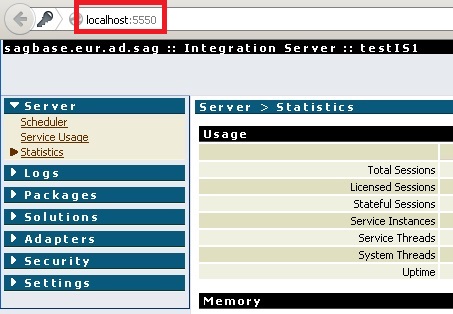
- If you want to install the new instance as a Windows service, you can run
ISDIR\instances\testIS1\support\win32\installSvc.bat: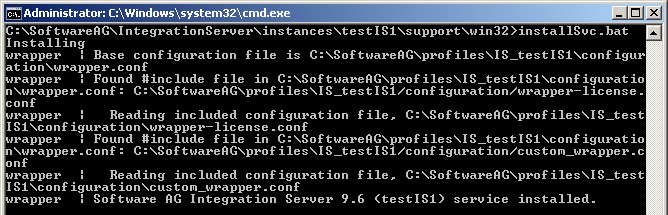
You should now see another IS service:
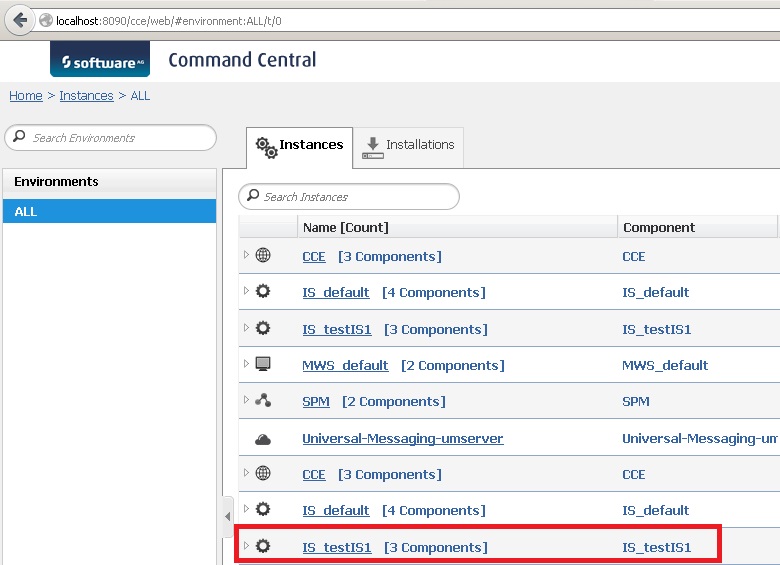
- You should also see the new instance in Command Central. A refresh or a restart of the platform manager may be needed.
How to create a new webMethods Integration Server instance
In newer versions of the webMethods suite, you can install multiple instances of Integration Server into a single installation. Some central packages will be re-used in every instance. However, administration of the instances may be a bit harder, as these packages have to be updated manually, e.g. in case of a version update or fix installation.
Here is how to setup a new Integration Server instance (
ISDIR points to the Integration Server directory, e.g. C:\SoftwareAG\IntegrationServer):- Run
ISDIR\instances\is_instance.bat create -Dinstance.name=testIS1 -Dprimary.port=5550 -Ddiagnostic.port=9990 -Djmx.port=8077 -Dlicense.file=C:\license.xml
This will start an Ant build that creates the new IS instance underinstances\testIS1. Of course, you may need to adjust the parameters according to your needs. - If the build finishes successfully, the instance can be started with
ISDIR\instances\testIS1\bin\startup.bat. You should now be able to connect tolocalhost:5550and see the administration page for your new instance: - If you want to install the new instance as a Windows service, you can run
ISDIR\instances\testIS1\support\win32\installSvc.bat:
You should now see another IS service: - You should also see the new instance in Command Central. A refresh or a restart of the platform manager may be needed.
How to create a self-signed SSL certificate for webMethods Integration Server with OpenSSL
Here’s a short step-by-step guide on how to create and install a self-signed SSL certificate for testing purposes in webMethods Integration Server. You can test secure HTTPS connections from clients to Integration Server with this certificate.
Create a certificate
You can easily create the certificate using OpenSSL on a Linux system.
- Create a private key.
openssl genrsa -des3 -out integrationserver.key 1024 Generating RSA private key, 1024 bit long modulus........................++++++ .++++++ e is 65537 (0x10001) Enter pass phrase for integrationserver.key: Verifying - Enter pass phrase for integrationserver.key: - Create a certificate signing request (CSR).
openssl req -new -key integrationserver.key -out integrationserver.csr Enter pass phrase for integrationserver.key: You are about to be asked to enter information that will be incorporatedinto your certificate request. What you are about to enter is what is called a Distinguished Name or a DN. There are quite a few fields but you can leave some blankFor some fields there will be a default value, If you enter '.', the field will be left blank. ----- Country Name (2 letter code) [AU]:DEState or Province Name (full name) [Some-State]:Lower-Saxony Locality Name (eg, city) []:Vechta Organization Name (eg, company) [Internet Widgits Pty Ltd]:Macke ITOrganizational Unit Name (eg, section) []: Common Name (eg, YOUR name) []:localhostEmail Address []: Please enter the following 'extra' attributes to be sent with your certificate request A challenge password []:IntegrationServer An optional company name []: - Sign the CSR yourself and create a certificate.
openssl x509 -req -days 365 -in integrationserver.csr -signkey integrationserver.key -out integrationserver.crt Signature ok subject=/C=DE/ST=Lower-Saxony/L=Vechta/O=Macke IT/CN=localhostGetting Private keyEnter pass phrase for integrationserver.key: - Convert the certificate to DER (which Integration Server needs).
openssl x509 -in integrationserver.crt -inform PEM -out integrationserver_der.crt -outform DER - Create a keystore containing the private key and the certificate in format PKCS12 (which Integration Server needs).
openssl pkcs12 -export -des3 -in integrationserver.crt -inkey integrationserver.key -out integrationserver.pkcs12 Enter pass phrase for integrationserver.key: Enter Export Password: Verifying - Enter Export Password: - Take a look at all the generated files and copy them over to a directory where IS can access them.
ls -la
-rw-r--r--  1 root root  818 10. Jan 18:32 integrationserver.crt-rw-r--r--  1 root root  680 10. Jan 18:32 integrationserver.csr-rw-r--r--  1 root root  563 10. Jan 18:34 integrationserver_der.crt-rw-r--r--  1 root root  963 10. Jan 18:29 integrationserver.key-rw-r--r--  1 root root 1581 10. Jan 18:34 integrationserver.pkcs12
Install the certificate in Integration Server
- Install the keystore via Security -> Keystore -> Create Keystore Alias on IS’s web frontend.
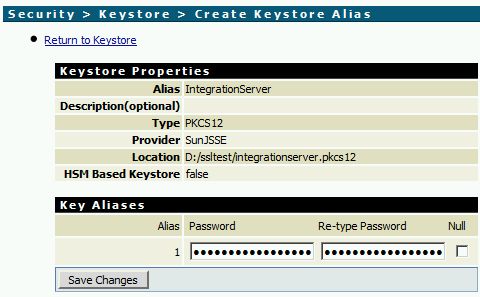
The new Keystore should now be listed.
- Install the certificate via Security -> Certificates -> Edit Certificates Settings.
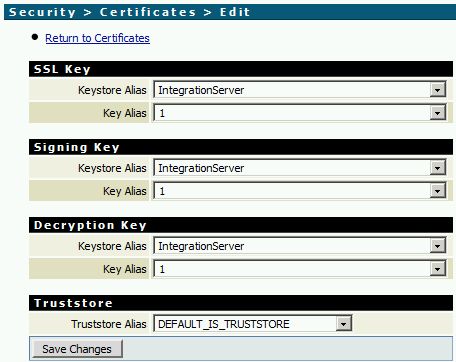
Add an HTTPS Port in Integration Server
- Security -> Ports -> Add Port
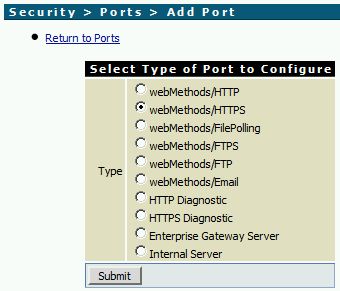
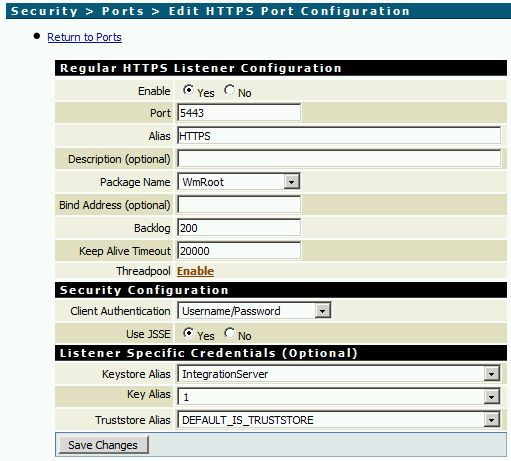
- You may need to configure the Access Mode of the new port, so that folders and services will be available via HTTPS. Simply click on the link in column Access Mode and configure the settings (Security -> Ports -> Edit Access Mode).
- Test the HTTPS connection by navigating to
https://localhost:5443. The certificate error is ok, because we self-signed our certificate. Add the certificate to the list of trusted certificates and move on. If you use a “real” certificate later, the error will go away.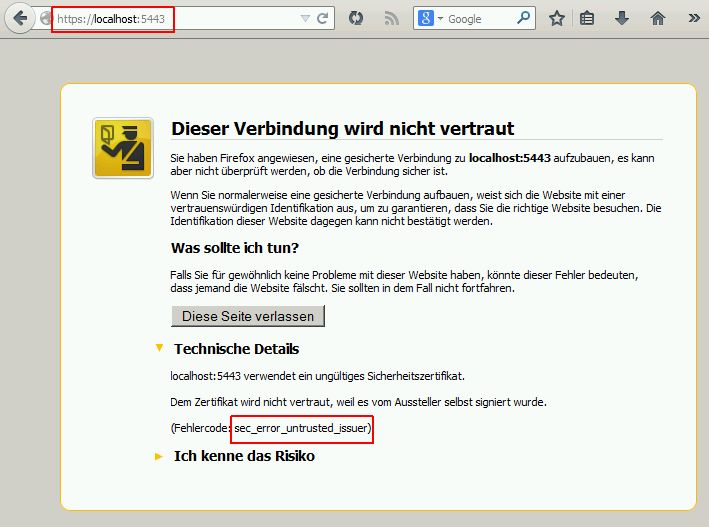
Reference: http://serviceorientedarchitect.com/tag/webmethods-integration-server/
Comments